

When a website form does not send email notifications, the likely causes include an incorrect recipient, unauthenticated mail delivery, spam filtering, server restrictions, form-plugin conflicts, expired credentials, failed webhooks or conditional routing. Test the entire path from the public submission through confirmation, notification, integration and final CRM or inbox record.
Understand what happens after someone clicks Submit
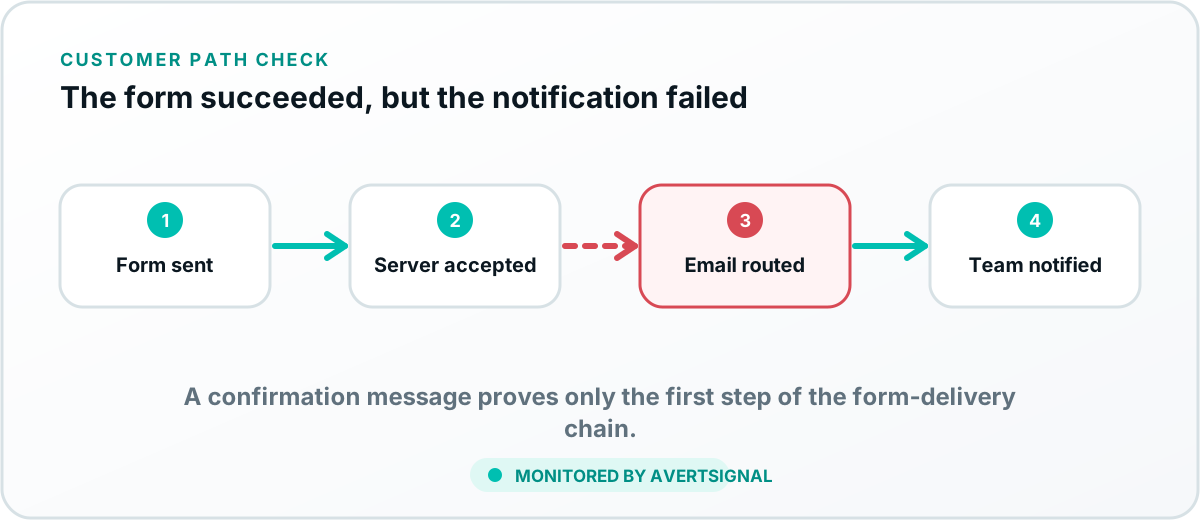
A form submission is not one event. The browser sends information to the website or form service. The system validates and stores the entry, displays a confirmation, sends one or more notifications and may pass the lead to an automation tool or CRM.
The customer may see success even when the business receives nothing. That is why the first diagnostic question is not “Did the form submit?” It is “How far did the lead travel?”
Identify the failed checkpoint
- Submit a controlled test from the public page with a unique name and email.
- Record the exact time, page URL, device and selections.
- Confirm whether the visitor sees a success message or thank-you page.
- Check whether the form system stored the entry.
- Check the business inbox, spam folder and mail logs.
- Check automation, webhook and CRM execution history.
- Confirm the final record and owner.
This process separates a browser or validation problem from an email-delivery or CRM problem.
Common reasons form emails do not arrive
Why a confirmation message is not proof of delivery
The website can display a thank-you page after storing the submission locally, before attempting to send email or contact the CRM. That confirmation proves the customer-facing stage completed. It does not prove the operational handoff.
Likewise, a conversion event in analytics can fire when the thank-you page loads. It still does not prove that anyone inside the business received the lead. Read why conversion tracking matters and what it cannot prove.
How to diagnose the email layer
- Confirm the configured From, Reply-To and recipient addresses.
- Check spam, quarantine and security logs.
- Verify that the sending domain and mail service are authorized.
- Send a test to a different receiving provider to identify mailbox-specific filtering.
- Review recent domain, DNS, hosting or email-provider changes.
- Check whether large attachments or unusual content trigger rejection.
Do not make the form pretend to send from the customer’s email address
Use an authenticated business sender and place the customer’s address in Reply-To. Impersonating arbitrary customer domains can create authentication and deliverability problems.
How to diagnose webhooks and CRM delivery
If the form is supposed to create a CRM record or run an automation, check the execution log. Look for authentication errors, field validation, rate limits, missing required values, duplicate rules and destination changes.
The detailed guide on why leads fail to reach the CRM covers that downstream path.
Temporary safeguards while the problem is being repaired
- Enable secure form-entry storage so submissions are not dependent on one email.
- Add a secondary notification destination.
- Export or review recent stored entries for missed customers.
- Place a temporary alternate phone or booking option on the page.
- Document the failure period so the team can follow up on recovered entries.
Safeguards should not become an excuse to leave the broken path in place. They are a bridge, not a permanent system architecture assembled from panic.
How to verify the fix
Repeat the original public submission using the same conditions that failed. Confirm the visitor experience, stored entry, email notification, integration record, CRM owner and response alert. Do not close the issue after an administrator sends a test email that bypasses the form.
For a reusable checklist, follow how to know whether your contact form works end to end.
Why ongoing form monitoring matters
Forms break after routine changes: website updates, field edits, email migrations, staff changes and CRM configuration. AvertSignal is designed to monitor the public action and downstream evidence so the business can see when a form stops producing a delivered lead.
Sources and further reading
Form notification diagnosis
A missing email does not always mean the lead was lost.
First prove whether the form system stored or accepted the entry. Then inspect the intended sending event, recipient address, delivery or suppression evidence, mailbox rules and any webhook or CRM destination. A notification can fail while the lead record succeeds, and the reverse can also happen.
Zoho CRM's official webform guidance, for example, separates record approval and visibility from owner notification. Provider behavior varies, so use your provider's authoritative logs.