

To know whether a contact form is actually working, submit a controlled test from the public page and verify seven checkpoints: the form loads, accepts valid information, shows confirmation, stores or logs the entry, sends the expected notification, creates the connected CRM or automation record and assigns the lead to the correct owner.
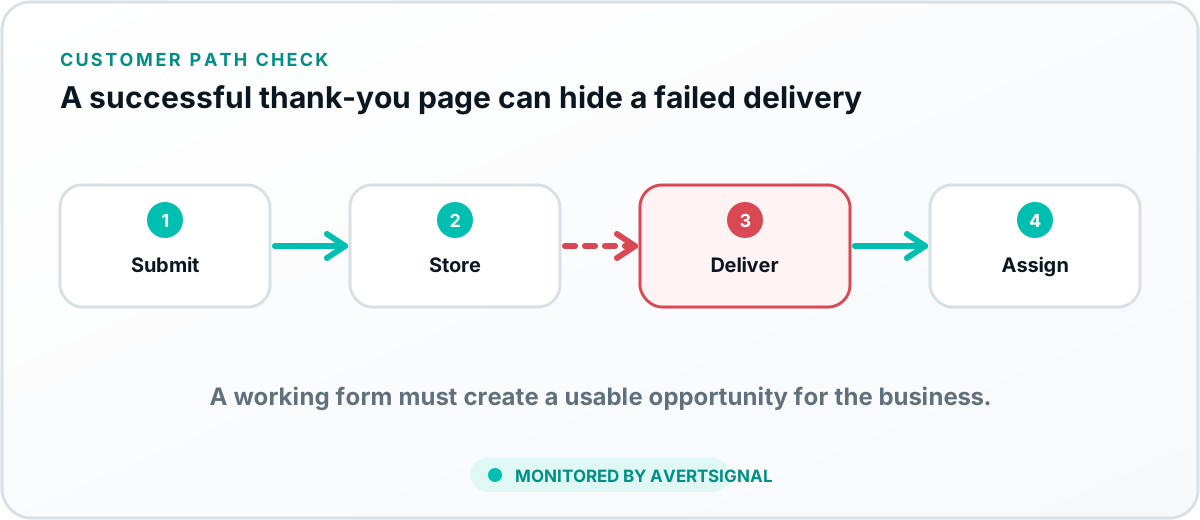
The seven checkpoints of a working contact form
- Availability: the form loads on the public page.
- Validation: required fields accept valid realistic values and reject invalid ones clearly.
- Submission: the browser completes the request without a blocking error.
- Confirmation: the visitor sees a clear success message or thank-you page.
- Entry evidence: the form provider or website records the submission where configured.
- Delivery: email, SMS, webhook or CRM receives the lead.
- Ownership: the correct employee, location or queue is notified and assigned.
Test the same public page a customer uses
Do not test only from a page-builder preview, website administrator screen or CRM form tester. Those tools may bypass caching, consent, scripts, redirects and security settings. Use the public URL in a clean browser session.
Use unique test information
Add a date or code to the name, company or message so the test can be located in every system. Use an email and phone number you control. Avoid repeatedly submitting identical values because duplicate rules may hide or merge the record.
Test mobile, desktop and important browser conditions
Mobile forms can fail because fields are hidden, buttons are covered, the keyboard blocks the action or scripts behave differently. Test the devices that produce meaningful traffic and at least one private or clean session without administrator cookies.
Test conditional paths
Service choices, locations, budget ranges and customer types may route to different forms, recipients or CRM pipelines. Test the branches that change ownership or delivery, not only the default path.
Separate confirmation from delivery
The visitor confirmation and the business notification are different checkpoints. A form may show success but fail to send email. The detailed troubleshooting process is in website form not sending emails.
Verify the CRM record and owner
Search every relevant pipeline, owner and duplicate record. Confirm the lead source, requested service, location and assignment. If the record is missing, use the CRM delivery diagnostic.
Verify the tracking event
Confirm the form event in analytics or tag-debugging tools. Then compare it with actual lead delivery. Tracking proves measurement, not receipt.
When to retest forms
- After website deployments, redesigns and plugin updates.
- After fields, recipients or confirmation pages change.
- After email, hosting, domain or DNS changes.
- After CRM, automation or routing changes.
- After staff or location changes.
- Whenever expected lead volume drops unexpectedly.
Why automated monitoring is useful
Manual testing is easy to postpone and often checks only the visible form. AvertSignal is designed to run defined customer paths, preserve evidence and verify the downstream handoff after a repair.
For the full acquisition-system audit, read how to stop losing website leads.
Sources and further reading
End-to-end test sequence
How do you test whether a form reaches the CRM?
- Use one governed synthetic marker through the public form.
- Record the submission time and visible response.
- Confirm server-side acceptance or stored-entry evidence.
- Confirm the email, webhook or integration event.
- Find the exact CRM record, including duplicate or approval areas.
- Verify the pipeline, owner, follow-up task and human visibility.
- Repeat the same path after any repair.
Browser validation improves input quality but is not downstream proof; MDN's form-validation guidance also distinguishes client-side checks from required server-side validation.