

When a booking form is not working, identify the failed stage: public link, embedded scheduler, service or staff availability, required fields, time zone, payment, confirmation, calendar creation, internal notification or CRM handoff. Complete a controlled booking through the same path a customer uses and verify every checkpoint.
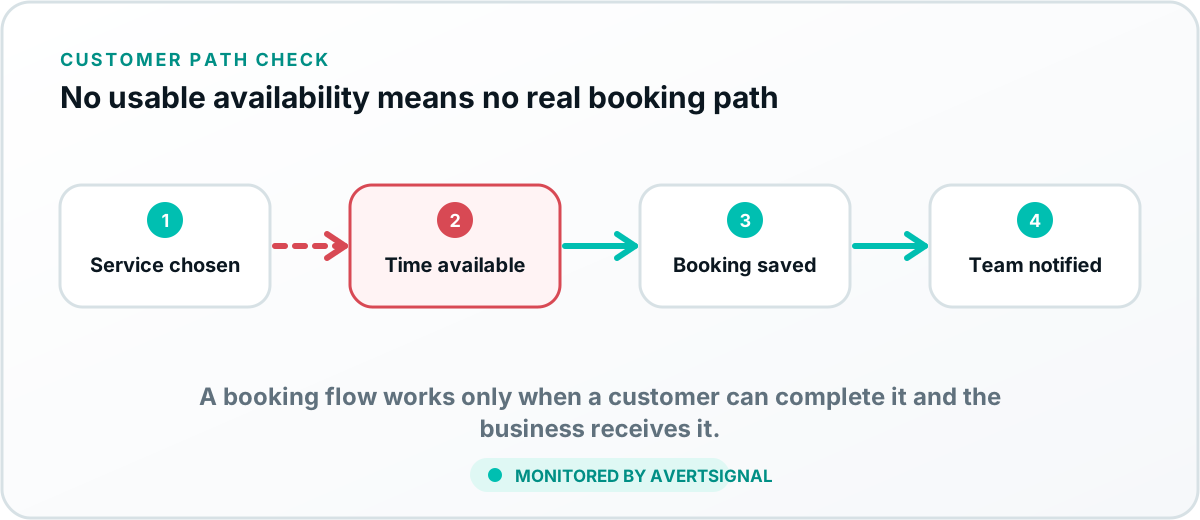
Map the booking path before changing anything
A booking system usually includes more than a calendar. The customer may begin on Google, an advertisement, a service page or an email. The link opens a scheduler, applies service and staff rules, checks availability, accepts information or payment, creates an appointment and triggers confirmations and internal notifications.
Write down each checkpoint and its expected result. Without that map, teams tend to change several settings at once and never learn what actually failed.
1. Verify the public booking link
- Open links from the website, Google Business Profile, advertisements and email templates.
- Confirm they lead to the current service, location and scheduler.
- Check redirects, expired campaign links and embedded widgets.
- Test on mobile and desktop without being logged in as an administrator.
2. Check service, staff and availability rules
A scheduler may load correctly but display no useful times. Review calendar connections, working hours, buffers, lead time, appointment duration, blocked dates, staff selection, location rules and time zones.
3. Test fields and validation
Required fields, phone formatting, address validation, consent checkboxes and conditional questions can block completion. Test realistic values and every important branch. A field that works for one location or service may reject another.
4. Test payment or deposit steps
If the booking requires payment, confirm the amount, currency, processor connection, authentication step and failure message. Check whether a failed payment still reserves the appointment or whether a successful payment fails to create it.
5. Confirm the customer sees a clear result
The customer should receive a visible confirmation with the correct service, date, time, location and next steps. Ambiguous success screens create duplicate bookings and unnecessary calls. If the customer receives confirmation but the business does not, the failure is downstream.
6. Verify calendar creation and team notification
Find the appointment in the correct staff or location calendar. Confirm internal email, SMS or application notifications. Check reminders and rescheduling links. A booking that exists only inside the scheduling vendor can still be operationally invisible to the team.
7. Verify CRM and lead-routing handoffs
If appointments should create or update CRM records, confirm the contact, source, service, owner and pipeline. Review duplicate handling and routing rules. The guide on why leads fail to reach a CRM applies to booking records as well as website forms.
Common causes of booking failures
- Expired or revoked calendar permissions.
- Staff schedules or time zones changed.
- Service settings no longer match availability.
- Embedded scripts break after a website update.
- Payment credentials or checkout rules fail.
- Confirmation emails are filtered or misaddressed.
- The appointment is created without the correct internal notification.
- CRM mapping or routing rejects the record.
Use a small booking test matrix
Test the combinations that create materially different paths: mobile and desktop, primary services, each location, each booking source, payment and no-payment, and new versus existing customers. Do not exhaustively test decorative variations that use the same underlying system.
Verify the repair through the public path
Repeat the exact service, location, device and source that failed. Confirm the customer result, appointment record, notification, calendar, CRM owner and tracking event. A successful administrator-created appointment does not prove the public path works.
Monitor booking systems continuously
AvertSignal is designed to monitor important booking paths and the evidence after completion. That connects the public customer experience with tracking, notifications and lead delivery instead of treating the scheduler as an isolated widget.
For measurement, read how to track website leads end to end. For broader lead-path protection, see how to stop losing website leads.
After the confirmation screen
Who owns the appointment request next?
A customer-facing confirmation is only one checkpoint. Find the matching calendar entry, staff notification, CRM record, assigned owner, and follow-up task. If one is missing, the failure is downstream of the form even though the booking appeared successful.
Test one governed appointment through the public path and record each result: request, route, notification, calendar or CRM, owner, confirmation, and next action. Do not use an administrator-created appointment as proof.
Troubleshoot the CRM handoff or estimate the phone opportunity exposed when booking falls back to a call.